
Windows
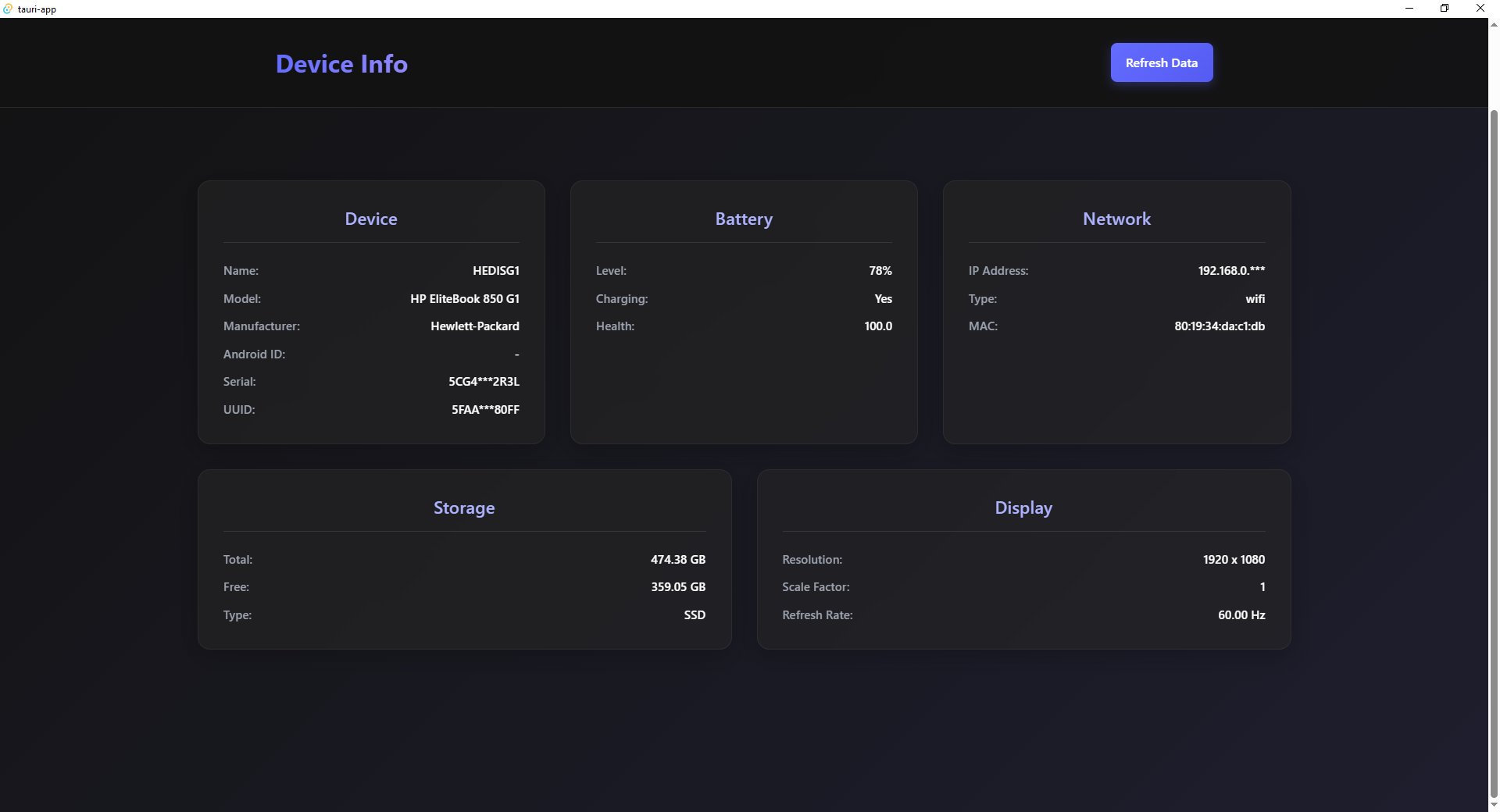
Implementation
Windows support uses WMI (Windows Management Instrumentation) to query system information.
Technologies Used
- wmi crate - Rust bindings for WMI
- COM - Component Object Model
- sysinfo crate - Storage information
- CoreGraphics - Display refresh rate
WMI Tables
| Information | WMI Table | Field |
|---|---|---|
| Manufacturer | Win32_ComputerSystem | Manufacturer |
| Model | Win32_ComputerSystem | Model |
| Device Name | Win32_ComputerSystem | Name |
| UUID | Win32_ComputerSystemProduct | UUID |
| Serial | Win32_BIOS | SerialNumber |
| Refresh Rate | Win32_VideoController | CurrentRefreshRate |
Testing WMI Queries
You can test WMI queries in PowerShell:
powershell
# Device info
Get-WmiObject -Class Win32_ComputerSystem | Select Manufacturer, Model, Name

# UUID
Get-WmiObject -Class Win32_ComputerSystemProduct | Select UUID

# Serial number
Get-WmiObject -Class Win32_BIOS | Select SerialNumber

# Display refresh rate
Get-WmiObject -Class Win32_VideoController | Select CurrentRefreshRate
Troubleshooting
WMI Service Issues
If queries fail, check the WMI service:
powershell
# Check service status
Get-Service winmgmt

# Restart service
Restart-Service winmgmt

# Verify repository
winmgmt /verifyrepository

# Repair if needed
winmgmt /salvagerepository
Virtual Machines
On virtual machines, some information may be missing or show hypervisor info:
- VMware: Shows "VMware, Inc." as manufacturer
- Hyper-V: Shows "Microsoft Corporation"
- VirtualBox: Shows "innotek GmbH"